
I ran my own resume through the built-in checker and watched the score drop from 100 to 87 in one click
Most job applications today don't go to a person first. They go into an Applicant Tracking System, which extracts the text from your PDF, tries to slot it into fields, and scores it against the job posting before a recruiter ever opens it. If the parser misreads your layout, qualified candidates get filtered out silently — no rejection email, no feedback, just nothing. This isn't a reason to panic, but it is a reason to treat your resume as two documents at once: one a human skims for maybe 7 seconds, and one a piece of software parses character by character.
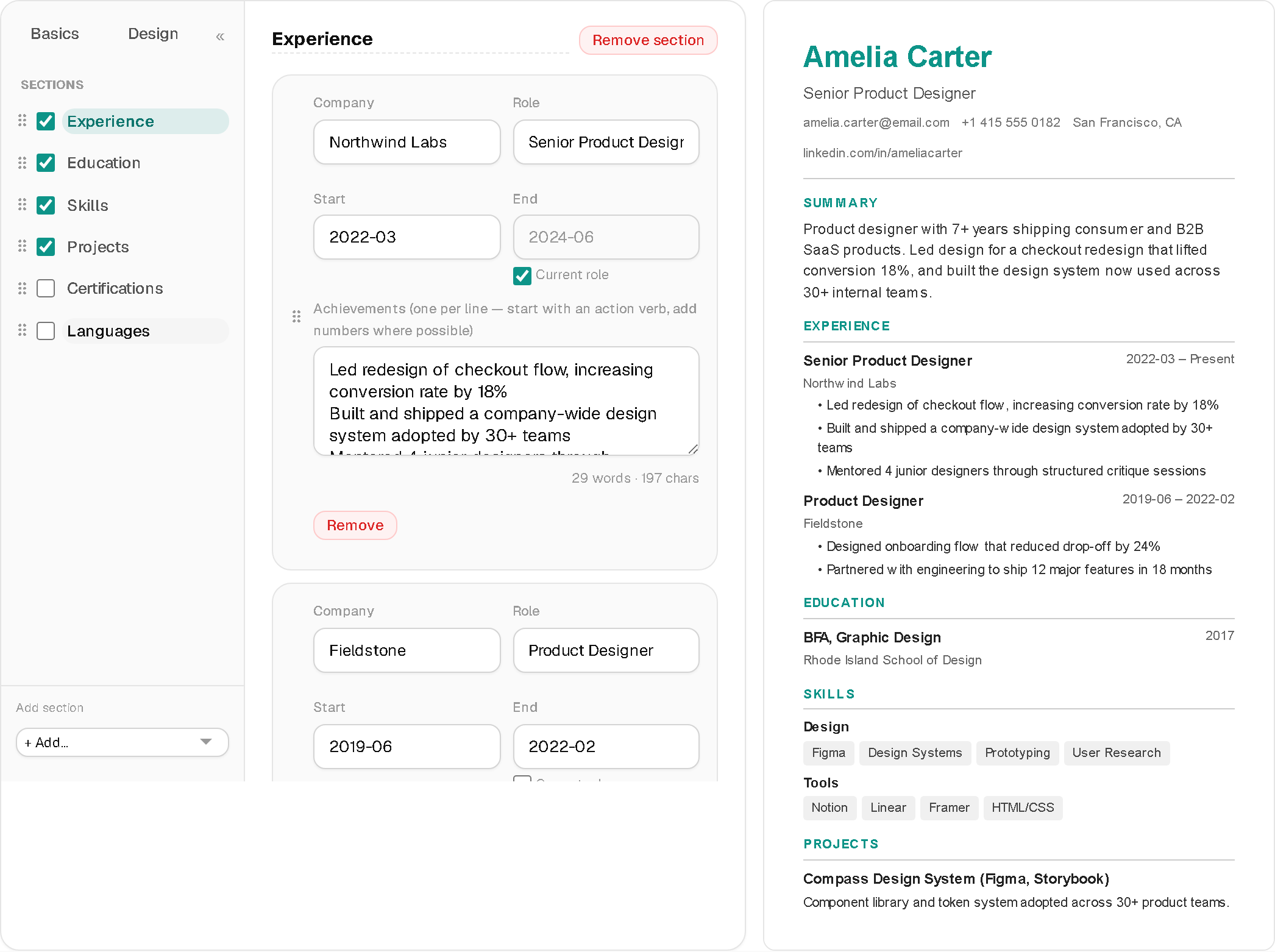
When I first tested the score pill on my own draft, it started at 100 and knocked off 5 points for a missing phone number I'd deliberately left out, another 5 for a summary under 20 words, and 3 more for an experience bullet with no digits in it — no "improved performance by 30%," just a vague sentence. Watching the number move in real time made the abstract advice concrete: a missing phone field costs exactly 5 points, not "some points."
What actually confuses an ATS parser
Some ATS software extracts PDF text in raw reading order — left to right, top to bottom. A 2-column layout with a photo and skills in a sidebar can get read completely out of order, so a job title ends up interleaved with a skill from the sidebar. The content isn't lost, it's scrambled by the time a keyword matcher sees it. Renaming "Experience" to something creative causes a quieter version of the same problem — you might be invisible to a parser tuned to look for standard headings.
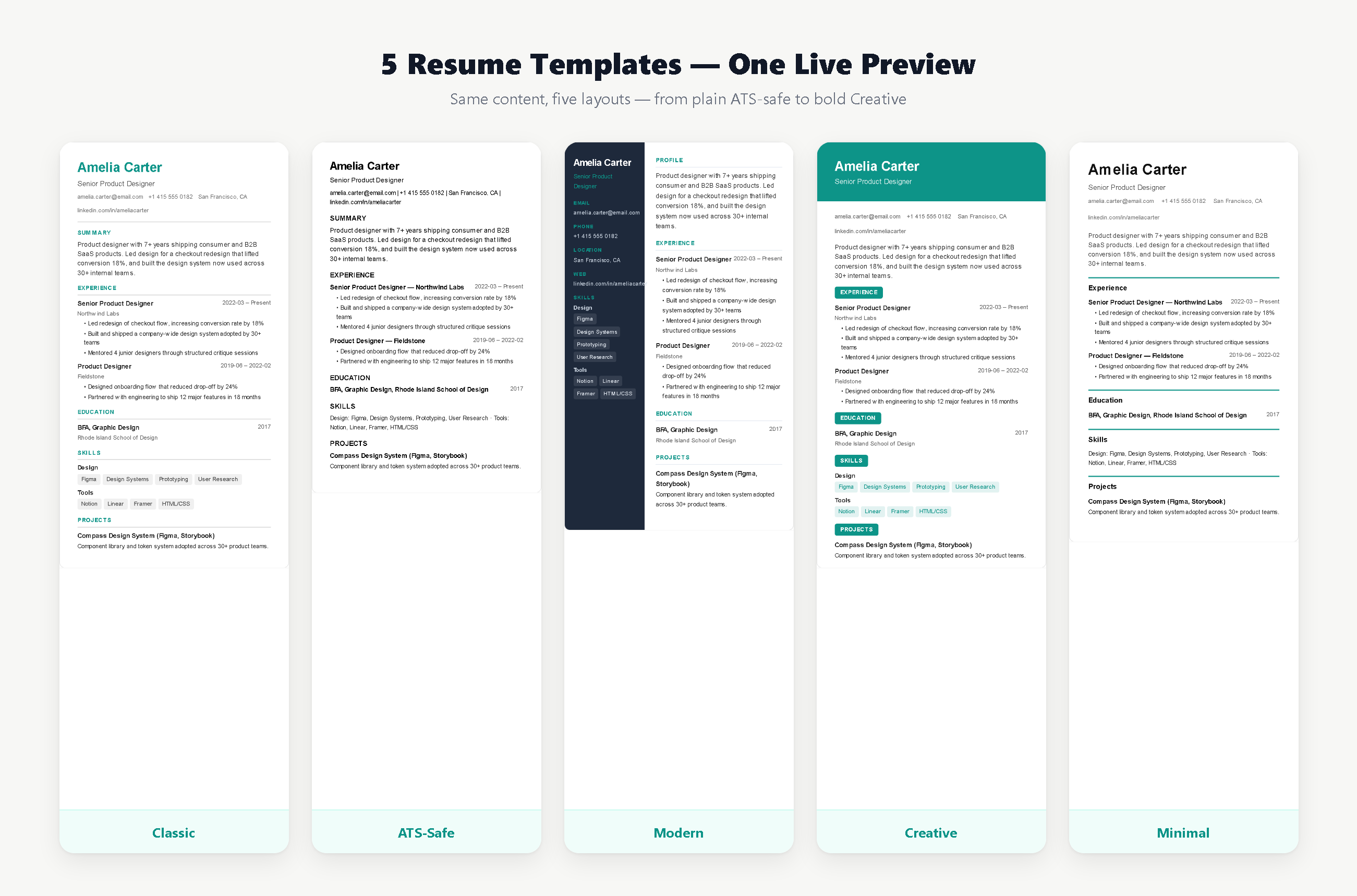
None of this means styled resumes are wrong. It means the right choice depends on who reads it first, which is the actual reason SolveBar's CV Builder ships 5 templates instead of one "safe default": a plain ATS-safe layout for portal applications, and 4 more expressive ones for everything else.
What the score pill actually checks
Missing name or missing email each cost 10 points. No phone number costs 5. A summary under 20 words costs 5; over 120 words costs 3. Fewer than 2 bullet points under a job costs 3, and a bullet with zero numbers in it costs another 3 — the checker literally regex-tests for a digit before docking you. Listing fewer than 5 skills costs 5 more, since recruiters scan for keyword density, not prose. None of these are arbitrary opinions; they're fixed point deductions baked into the same scorer that renders your live preview.
The keyword match is the part generic advice can't give you
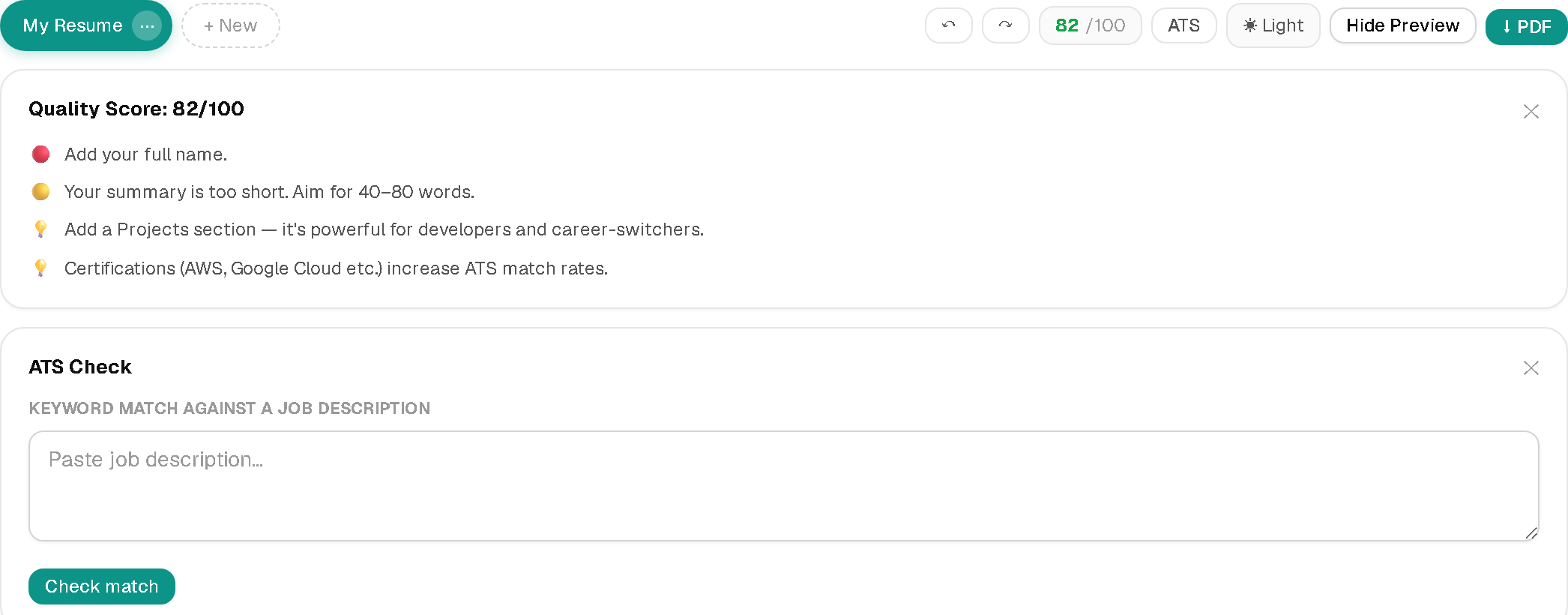
Paste an actual job description into the ATS Check panel and it tokenizes the posting, compares it against your resume's own text, and lists the specific terms you're missing — not "add keywords" as vague advice, but this job's actual missing keywords, ranked. "Use keywords" is useless without knowing which ones a specific listing cares about; this tells you.
Picking a template isn't a one-time decision
Classic and Minimal are safe, single-column defaults that read well either way. ATS-safe strips out anything that could confuse a parser — use it for large-company portals where you genuinely don't know what's on the other end. Modern (dark sidebar) and Creative (accent header, optional photo) look strongest to a human reading directly — a referral, a small company, a direct email to a hiring manager. Pick per application, not once and forever; I switch templates depending on whether I know a human or a parser sees it first.